> ## Documentation Index
> Fetch the complete documentation index at: https://docs.braintrust.ti.trilogy.com/llms.txt
> Use this file to discover all available pages before exploring further.
# Hiring Your First Expert
> Find an expert, hire it, configure access, and start chatting in Google Chat.
**What hiring does:** Creates your private copy of an expert and opens a DM in Google Chat. Your credentials and conversation history are isolated from other users who hire the same expert.
## Step 1: Find an Expert
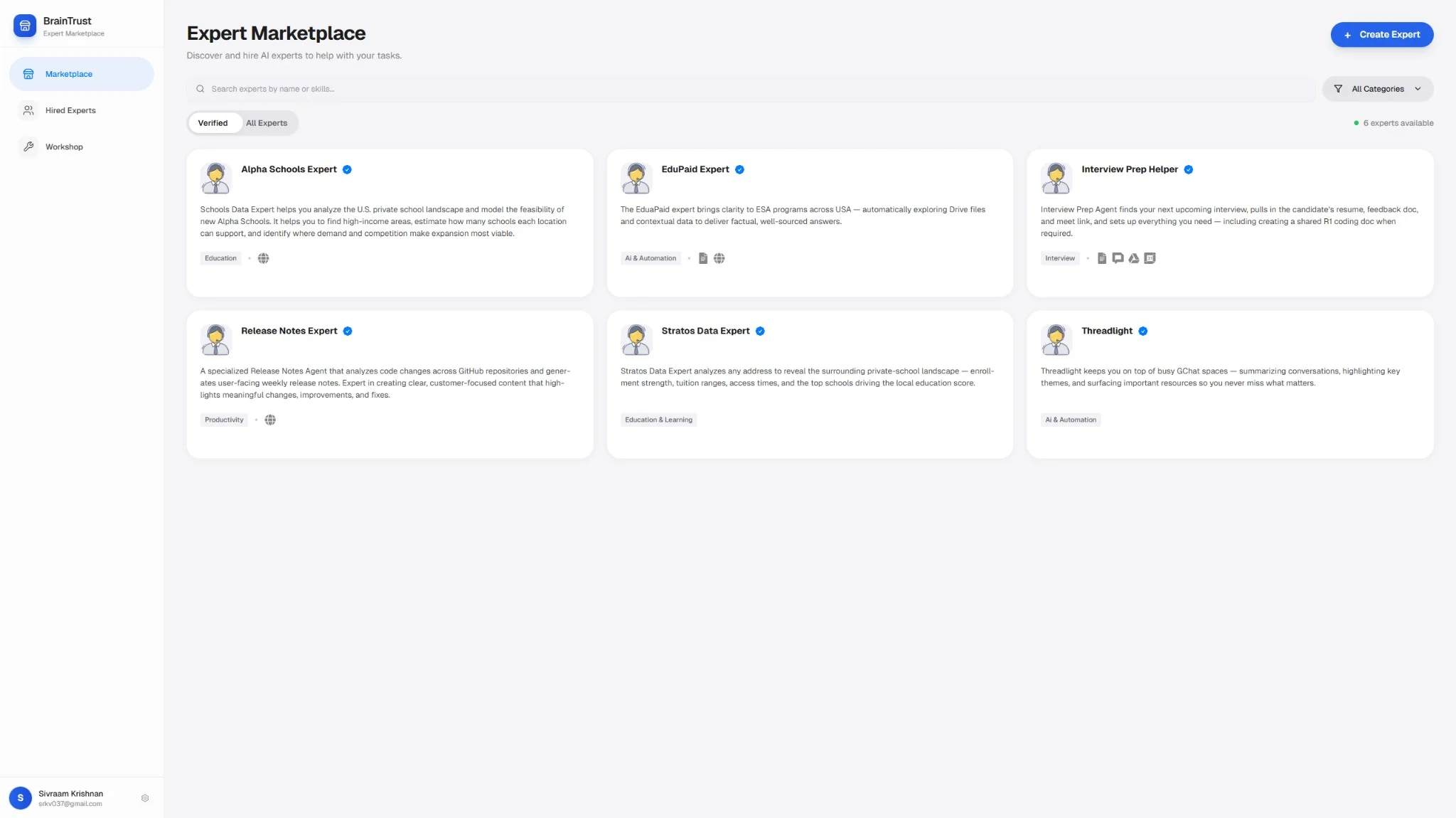
Open the marketplace: [braintrust.ti.trilogy.com/experts](https://braintrust.ti.trilogy.com/experts)
* **Verified** view (default): reviewed experts.
* **All Experts** view: full catalog, including community-created experts.
 ## Step 2: Review the Expert Page
Before hiring, check:
* What it does (description/about)
* Which tools it uses
* Example outputs/images
### Take a Guided Tour
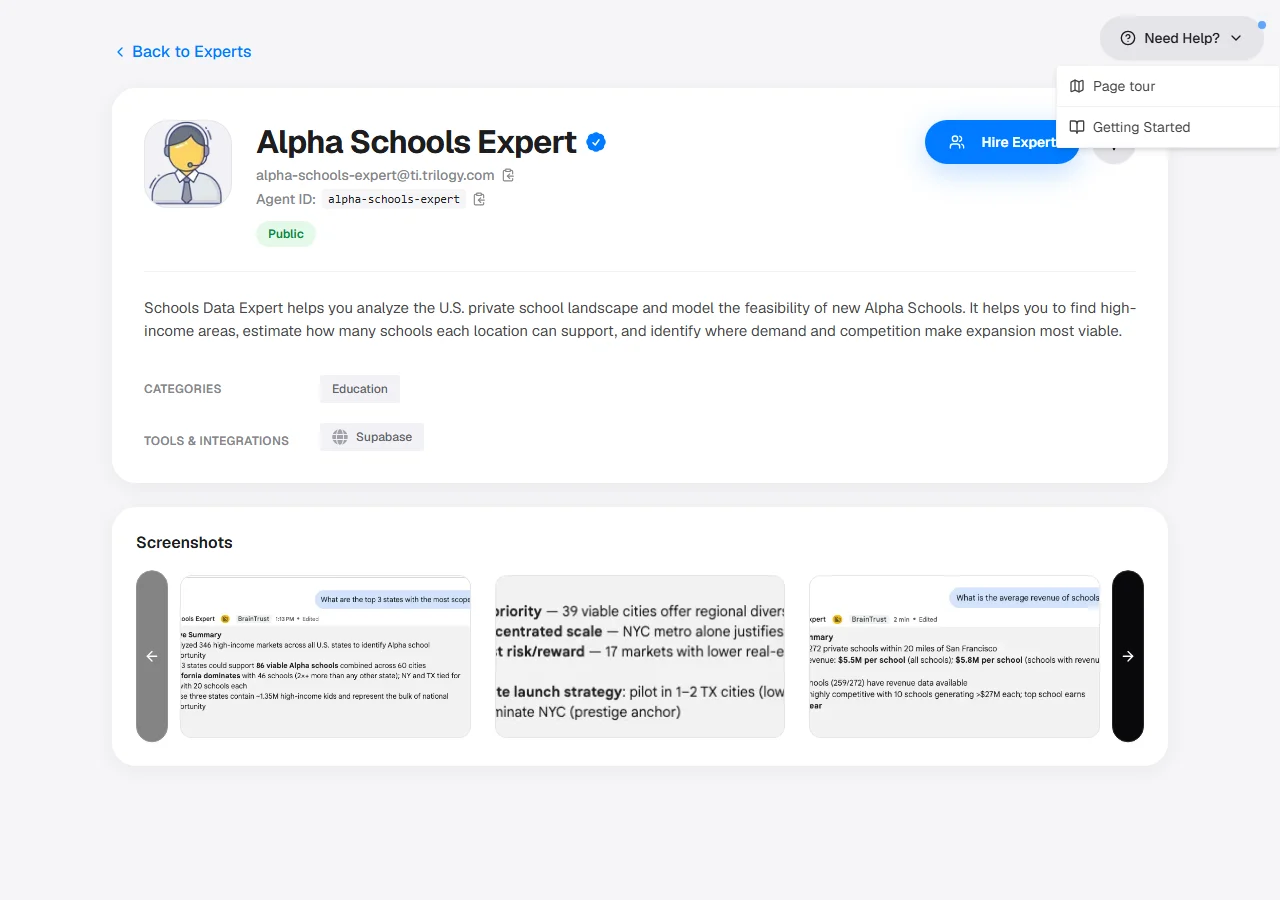
Every expert page — the marketplace listing at [braintrust.ti.trilogy.com/experts](https://braintrust.ti.trilogy.com/experts) and each single-expert detail page — has a **Need Help?** button in the top corner. Click it to open the help menu, which has two entries:
Click the **Need Help?** button in the top corner of the page.
* **Page tour** launches an interactive walkthrough that highlights the key areas of the current page in sequence. On a single-expert page it highlights the expert overview card first, then the actions.
* **Getting Started** reopens the first-run getting-started guidance.
## Step 2: Review the Expert Page
Before hiring, check:
* What it does (description/about)
* Which tools it uses
* Example outputs/images
### Take a Guided Tour
Every expert page — the marketplace listing at [braintrust.ti.trilogy.com/experts](https://braintrust.ti.trilogy.com/experts) and each single-expert detail page — has a **Need Help?** button in the top corner. Click it to open the help menu, which has two entries:
Click the **Need Help?** button in the top corner of the page.
* **Page tour** launches an interactive walkthrough that highlights the key areas of the current page in sequence. On a single-expert page it highlights the expert overview card first, then the actions.
* **Getting Started** reopens the first-run getting-started guidance.
 The Page tour is page-aware: the marketplace listing and the single-expert detail page each have their own tour, so launch it from the page you want to learn.
The tour highlights elements in place (such as the expert overview card) and you can dismiss it at any time. It does not change any expert configuration.
## Step 3: Click Hire Expert
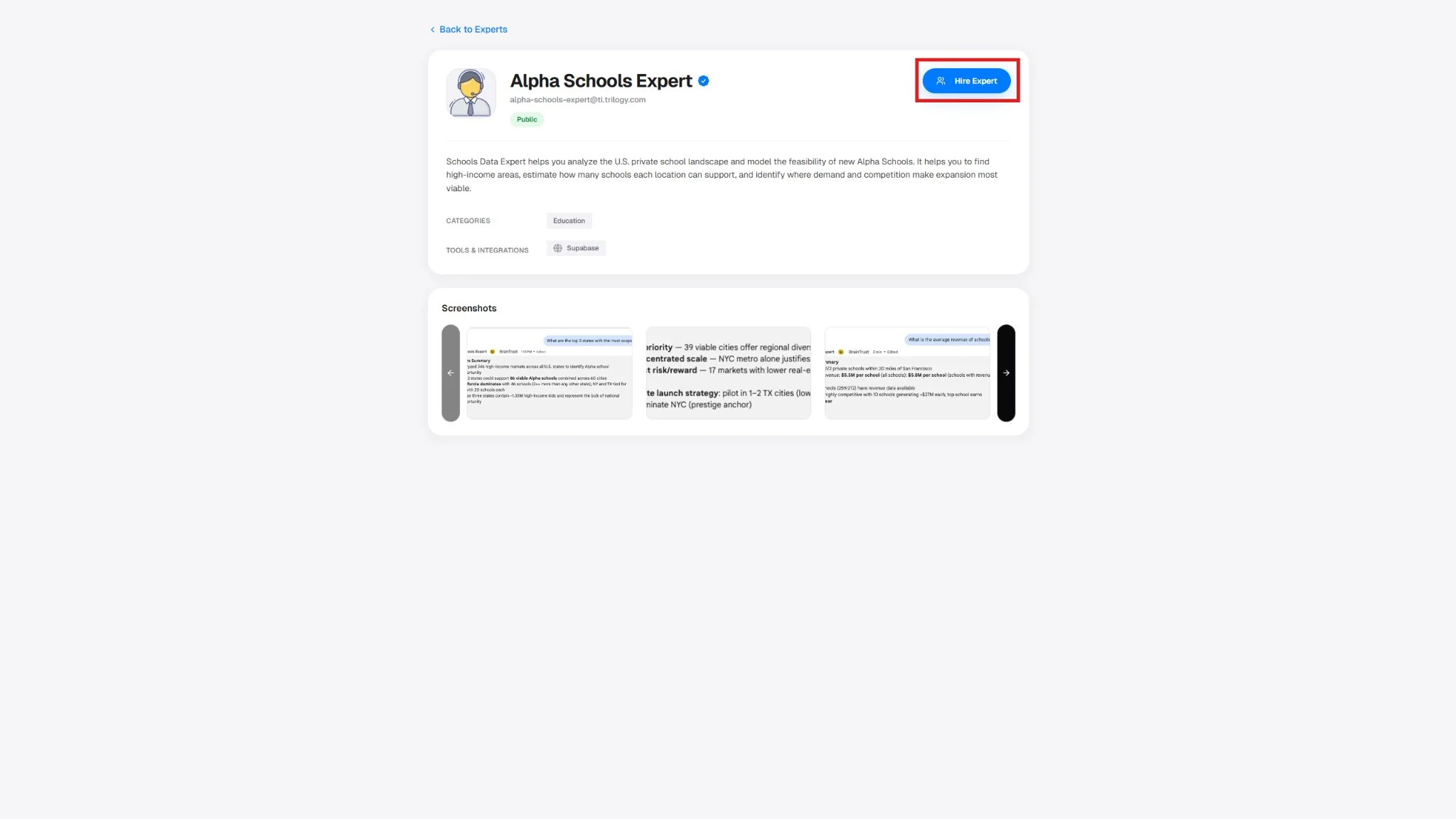
On the expert page, click **Hire Expert**.
The Page tour is page-aware: the marketplace listing and the single-expert detail page each have their own tour, so launch it from the page you want to learn.
The tour highlights elements in place (such as the expert overview card) and you can dismiss it at any time. It does not change any expert configuration.
## Step 3: Click Hire Expert
On the expert page, click **Hire Expert**.
 After hiring:
1. Your private expert copy is created.
2. A DM opens in Google Chat.
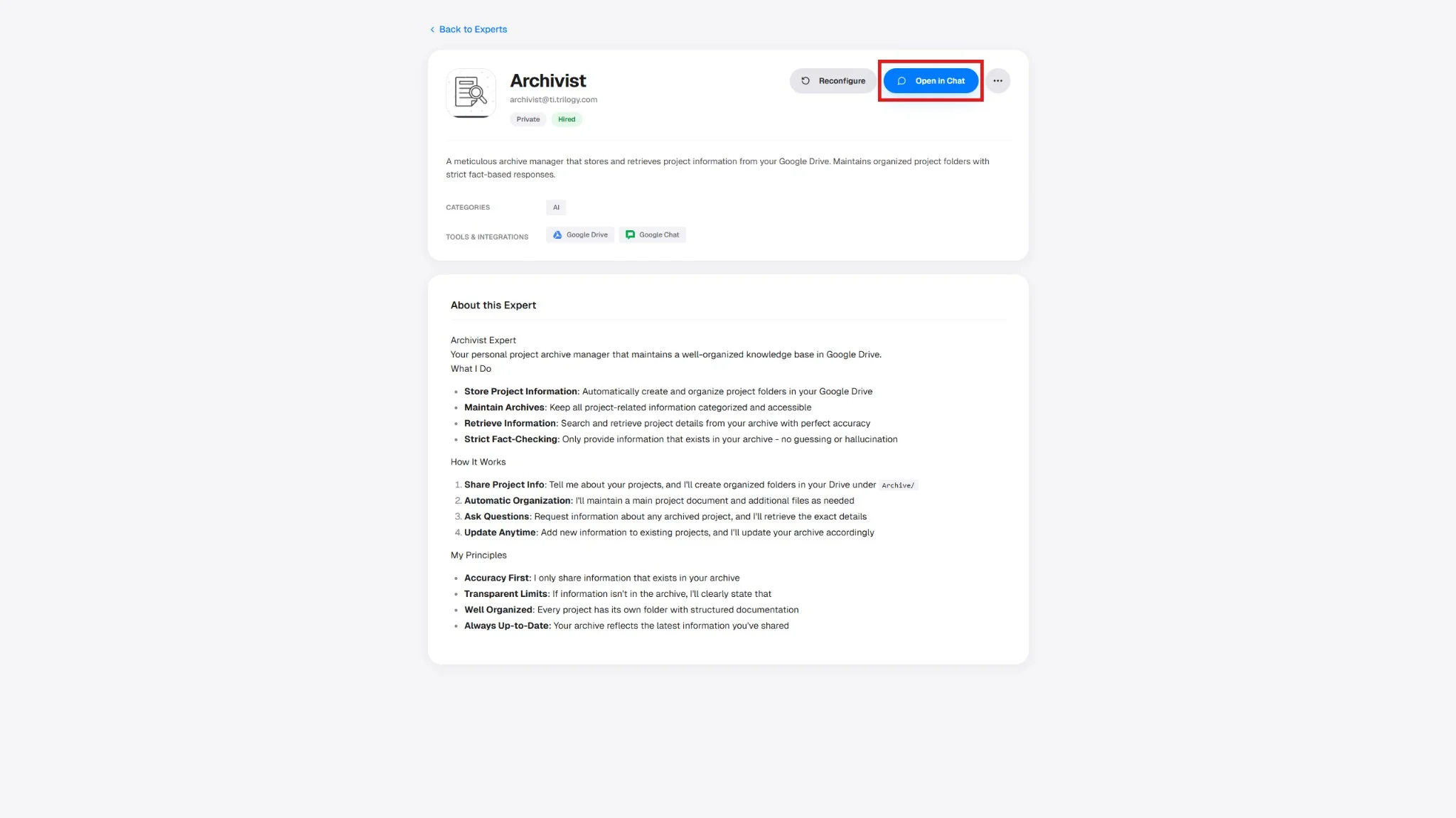
3. The button changes to **Open in Chat**.
**Success:** The expert now appears in your hired list and has an active DM.
## Step 4: Configure (If Prompted)
If you see **Configure** or **Reconfigure**:
1. Click **Configure**.
2. Complete each required service (OAuth/API key/token/etc).
3. Continue until all items show checkmarks.
Need detailed credential help? See [Connecting Tools and Integrations](/experts/configuring-agent-tools).
## Step 5: Open in Chat
Click **Open in Chat** and send a first test message.
Suggested first prompt:
> "What can you help me with?"
After hiring:
1. Your private expert copy is created.
2. A DM opens in Google Chat.
3. The button changes to **Open in Chat**.
**Success:** The expert now appears in your hired list and has an active DM.
## Step 4: Configure (If Prompted)
If you see **Configure** or **Reconfigure**:
1. Click **Configure**.
2. Complete each required service (OAuth/API key/token/etc).
3. Continue until all items show checkmarks.
Need detailed credential help? See [Connecting Tools and Integrations](/experts/configuring-agent-tools).
## Step 5: Open in Chat
Click **Open in Chat** and send a first test message.
Suggested first prompt:
> "What can you help me with?"
 ## What You Get When You Hire
* A private DM with this expert.
* Your own isolated credentials/configuration for connected tools.
* Independent usage from other users who hire the same expert.
## Manage Later
From the expert page you can:
* **Open in Chat**
* **Configure/Reconfigure**
* **Set Triggers**
* **Remove** (permanent for your copy)
## Next Steps
Learn prompt patterns that produce better results.
Share your expert with your team.
Run recurring workflows automatically.
Fix common hire/configuration issues.
## What You Get When You Hire
* A private DM with this expert.
* Your own isolated credentials/configuration for connected tools.
* Independent usage from other users who hire the same expert.
## Manage Later
From the expert page you can:
* **Open in Chat**
* **Configure/Reconfigure**
* **Set Triggers**
* **Remove** (permanent for your copy)
## Next Steps
Learn prompt patterns that produce better results.
Share your expert with your team.
Run recurring workflows automatically.
Fix common hire/configuration issues.