> ## Documentation Index
> Fetch the complete documentation index at: https://docs.braintrust.ti.trilogy.com/llms.txt
> Use this file to discover all available pages before exploring further.

# Get Your First Expert Running in 5 Minutes

> The fastest path from zero to chatting with an AI expert in Google Chat.

<div className="not-prose mb-8 flex items-center gap-4 rounded-xl border border-[#007AFF]/20 bg-gradient-to-r from-[#EBF4FF] to-white dark:from-[#001529] dark:to-[#0D1117] px-6 py-5">
  <div className="flex h-12 w-12 shrink-0 items-center justify-center rounded-full bg-[#007AFF]/10 text-[#007AFF] text-2xl font-bold">
    5′
  </div>

  <div>
    <p className="text-sm font-semibold text-[#007AFF] uppercase tracking-wide mb-0.5">Quickstart</p>
    <p className="text-lg font-bold text-gray-900 dark:text-white">Get your first expert running in 5 minutes</p>
    <p className="text-sm text-gray-500 dark:text-gray-400">Using <strong>Threadlight</strong> as the example — the same steps apply to any expert.</p>
  </div>
</div>

<Note>
  For detailed explanations of each step, see [Hiring Your First Expert](/experts/hiring-your-first-agent).
</Note>

<Steps>
  <Step title="Open the Marketplace" icon="magnifying-glass">
    Go to [braintrust.ti.trilogy.com/experts](https://braintrust.ti.trilogy.com/experts) and find **Threadlight**.

    The marketplace shows **Verified** experts by default. If you don't see it, click **All Experts** at the top to view the full catalog.
  </Step>

  <Step title="Click Hire Expert" icon="user-plus">
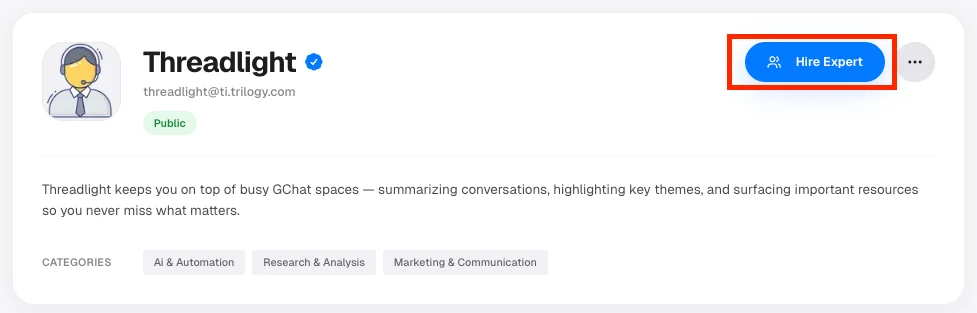
    On the Threadlight page, click **Hire Expert**. A DM is automatically created for you in Google Chat.

    <Frame>
      <img src="https://mintcdn.com/devfactory/TEteLc1zUJOxCu2V/images/hire-expert-button-2.png?fit=max&auto=format&n=TEteLc1zUJOxCu2V&q=85&s=98ce10f61fed0e1a7d03b3a1bbab72ff" alt="Threadlight expert page with Hire Expert button highlighted" width="977" height="313" data-path="images/hire-expert-button-2.png" />
    </Frame>

    <Check>
      **Success:** The button changes to **Open in Chat**.
    </Check>
  </Step>

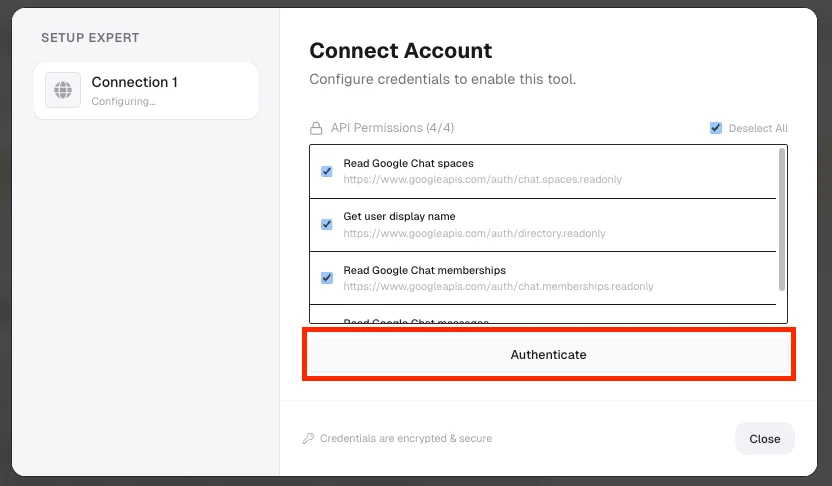
  <Step title="Configure (if needed)" icon="plug">
    If a **Configure** button appears with a warning badge, click it and connect each required service — OAuth, API key, or token. Skip this step if there is no warning.

    <Frame>
      <img src="https://mintcdn.com/devfactory/TEteLc1zUJOxCu2V/images/authorise-agent-button.png?fit=max&auto=format&n=TEteLc1zUJOxCu2V&q=85&s=44fea65e603362aad1b116309c0d6965" alt="Connect Account modal with Authenticate button highlighted" width="832" height="486" data-path="images/authorise-agent-button.png" />
    </Frame>

    <Check>
      **Success:** All items in the wizard show checkmarks.
    </Check>
  </Step>

  <Step title="Open in Chat and send a message" icon="message">
    Click **Open in Chat**. In the DM, type your first message:

    > "What can you help me with?"

    The expert responds in real time.

    <Check>
      **Success:** You see the expert's greeting and it replies to your message.
    </Check>
  </Step>
</Steps>

Your expert is live. Choose where to go next:

<CardGroup cols={2}>
  <Card title="Add to a Group Space" icon="users" color="#007AFF" href="/experts/getting-braintrust-into-google-chat" arrow={true}>
    Bring your expert into a group Space so your whole team can use it.
  </Card>

  <Card title="Set Up Automations" icon="clock" color="#5856D6" href="/automation/triggers" arrow={true}>
    Have the expert run tasks on a schedule — no prompting needed.
  </Card>

  <Card title="Connect More Tools" icon="plug" color="#FF9500" href="/experts/configuring-agent-tools" arrow={true}>
    Authorize integrations so your expert can work across your stack.
  </Card>

  <Card title="Invoke via API" icon="code" color="#34C759" href="/reference/api-reference" arrow={true}>
    Call experts programmatically from your own apps.
  </Card>
</CardGroup>