> ## Documentation Index
> Fetch the complete documentation index at: https://docs.braintrust.ti.trilogy.com/llms.txt
> Use this file to discover all available pages before exploring further.
# Controlling Who Can Use Your Expert
> Manage expert visibility, access lists, and permission roles.
Braintrust uses a role-based permission system to control who can see, hire, edit, and manage experts. This guide explains how to configure access.
**Prerequisites**
* You are an **Owner** or **Editor** of the expert.
* You can access the expert's detail page in the Braintrust Marketplace.
## The Three Roles
Every user who interacts with an expert has one of three roles:
| Role | Can Hire | Can Edit | Can Delete | Can Manage Access | Can Deprovision |
| ---------- | -------- | -------- | ---------- | ----------------- | --------------- |
| **Viewer** | Yes | No | No | No | No |
| **Editor** | Yes | Yes | No | Yes | No |
| **Owner** | Yes | Yes | Yes | Yes | Yes |
* **Viewer** is the default role for anyone who can see the expert.
* **Editor** can modify the expert's settings and invite others.
* **Owner** has full control, including the ability to delete and deprovision the expert.
## Public vs Private Experts
Experts have two visibility modes:
### Public Experts
* Visible to **everyone** in the marketplace.
* Anyone can hire them.
* Default for newly created experts.
### Private Experts
* Only visible to users on the **access list**.
* If you are not on the access list, the expert does not appear in your marketplace — it returns a "Not found" error if you try to access it directly.
Use Private mode for experts that contain sensitive integrations or are only relevant to a specific team.
## Managing the Access List
Open the access management panel:
1. Go to the expert's detail page.
2. Click **Manage Access** in the More menu.
3. The access modal opens.
 ### Viewing Current Access
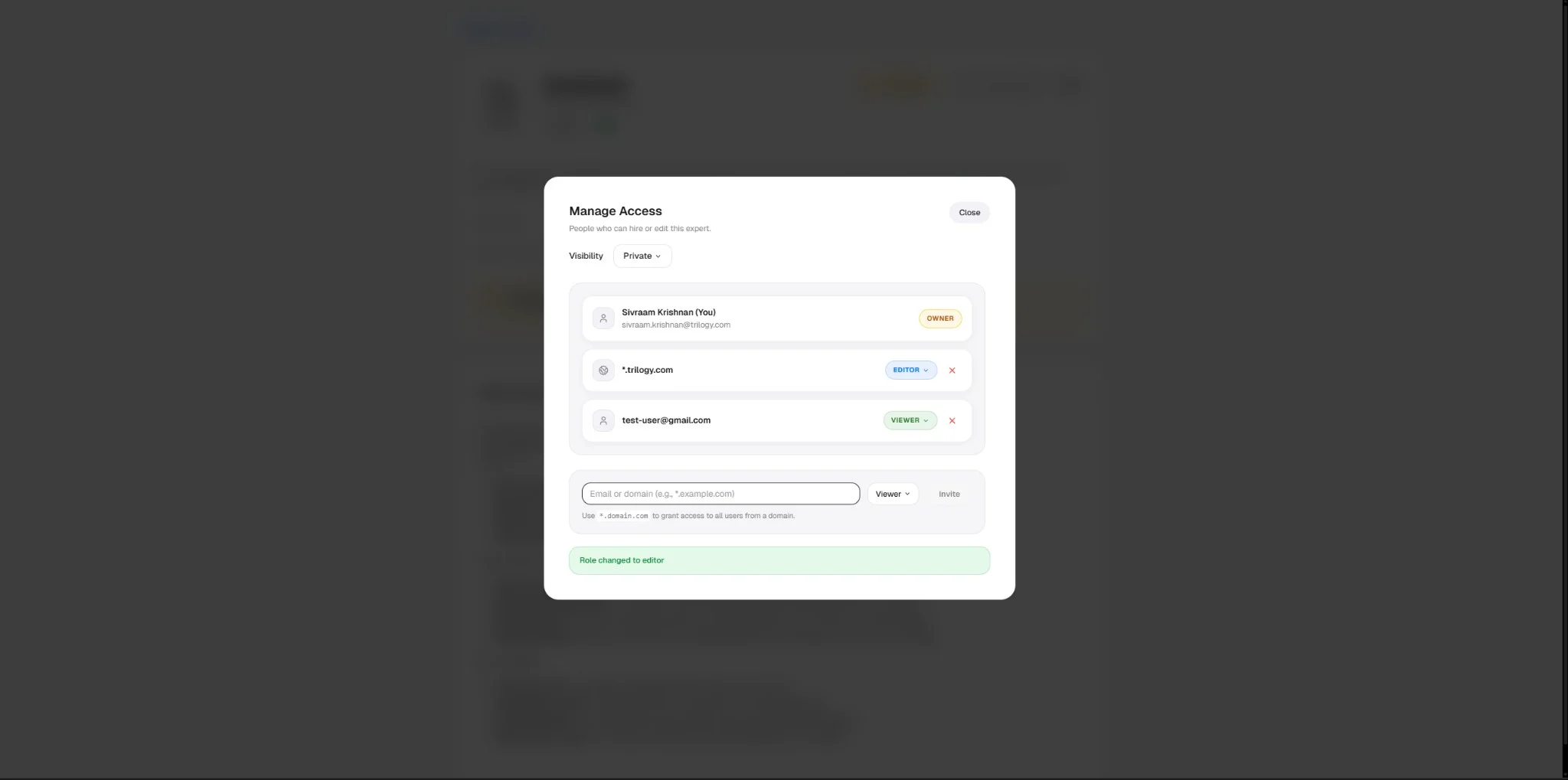
The modal shows a list of all users and domains with access:
* **Owner** — Shown with an amber badge. Cannot be removed or changed.
* **Editor** — Shown with a blue badge. Can be changed to Viewer or removed.
* **Viewer** — Shown with a green badge. Can be changed to Editor or removed.
Your own entry is marked with "(You)."
### Inviting Users
1. In the invite form at the bottom of the modal, enter an **email address** or a **domain pattern**.
2. Select a role: **Viewer** or **Editor**.
3. Click **Invite**.
**Email invites** grant access to a specific person:
```
alice@yourcompany.com
```
**Domain invites** grant access to everyone with a matching email domain:
```
*.yourcompany.com
```
Domain patterns use the format `*.domain.com`. This gives access to every user with an email ending in `@domain.com` (e.g., `alice@domain.com`, `bob@domain.com`).
### Changing Roles
1. Find the user in the access list.
2. Click the role dropdown next to their name.
3. Select the new role (Viewer or Editor).
You cannot change the Owner's role. There is always exactly one Owner per expert.
### Removing Access
1. Find the user or domain in the access list.
2. Click the **X** button next to their entry.
You cannot remove yourself from the access list. You also cannot remove the Owner.
## How Access Affects Behavior
| Scenario | What Happens |
| ---------------------------------------------- | ------------------------------------------------------------- |
| Public expert + you have no role | You can see and hire it. You are a Viewer. |
| Private expert + you are not on the list | Expert is invisible to you. Direct URL returns "Not found." |
| Private expert + you are on the list as Viewer | You can see and hire it, but not edit. |
| You are Editor | You can edit settings, manage access, and configure webhooks. |
| You are Owner | Full control, including delete and deprovision. |
## Common Scenarios
Set the expert to **Public**. Everyone in the marketplace will be able to see and hire it.
1. Set the expert to **Private**.
2. Add your team's domain pattern: `*.yourteam.com` (or add each team member individually).
3. Set the role to **Viewer** for most people.
Add their email to the access list with the **Editor** role. They will be able to edit settings and manage access.
Ownership transfer is not available through the UI. Contact your Braintrust administrator to change an expert's Owner.
## Troubleshooting
| Problem | Solution |
| ------------------------------------ | ----------------------------------------------------------------------------------- |
| "Not found" when accessing an expert | The expert is Private and you are not on the access list. Ask the Owner to add you. |
| "Forbidden" when trying to edit | You have Viewer access, not Editor. Ask the Owner to upgrade your role. |
| Cannot remove a user from the list | You may be trying to remove the Owner (not allowed) or yourself (not allowed). |
| Domain pattern not working | Make sure the format is `*.domain.com` — the asterisk and dot are required. |
## Next Steps
Modify the expert's behavior, tools, and identity.
Build your own expert from scratch.
### Viewing Current Access
The modal shows a list of all users and domains with access:
* **Owner** — Shown with an amber badge. Cannot be removed or changed.
* **Editor** — Shown with a blue badge. Can be changed to Viewer or removed.
* **Viewer** — Shown with a green badge. Can be changed to Editor or removed.
Your own entry is marked with "(You)."
### Inviting Users
1. In the invite form at the bottom of the modal, enter an **email address** or a **domain pattern**.
2. Select a role: **Viewer** or **Editor**.
3. Click **Invite**.
**Email invites** grant access to a specific person:
```
alice@yourcompany.com
```
**Domain invites** grant access to everyone with a matching email domain:
```
*.yourcompany.com
```
Domain patterns use the format `*.domain.com`. This gives access to every user with an email ending in `@domain.com` (e.g., `alice@domain.com`, `bob@domain.com`).
### Changing Roles
1. Find the user in the access list.
2. Click the role dropdown next to their name.
3. Select the new role (Viewer or Editor).
You cannot change the Owner's role. There is always exactly one Owner per expert.
### Removing Access
1. Find the user or domain in the access list.
2. Click the **X** button next to their entry.
You cannot remove yourself from the access list. You also cannot remove the Owner.
## How Access Affects Behavior
| Scenario | What Happens |
| ---------------------------------------------- | ------------------------------------------------------------- |
| Public expert + you have no role | You can see and hire it. You are a Viewer. |
| Private expert + you are not on the list | Expert is invisible to you. Direct URL returns "Not found." |
| Private expert + you are on the list as Viewer | You can see and hire it, but not edit. |
| You are Editor | You can edit settings, manage access, and configure webhooks. |
| You are Owner | Full control, including delete and deprovision. |
## Common Scenarios
Set the expert to **Public**. Everyone in the marketplace will be able to see and hire it.
1. Set the expert to **Private**.
2. Add your team's domain pattern: `*.yourteam.com` (or add each team member individually).
3. Set the role to **Viewer** for most people.
Add their email to the access list with the **Editor** role. They will be able to edit settings and manage access.
Ownership transfer is not available through the UI. Contact your Braintrust administrator to change an expert's Owner.
## Troubleshooting
| Problem | Solution |
| ------------------------------------ | ----------------------------------------------------------------------------------- |
| "Not found" when accessing an expert | The expert is Private and you are not on the access list. Ask the Owner to add you. |
| "Forbidden" when trying to edit | You have Viewer access, not Editor. Ask the Owner to upgrade your role. |
| Cannot remove a user from the list | You may be trying to remove the Owner (not allowed) or yourself (not allowed). |
| Domain pattern not working | Make sure the format is `*.domain.com` — the asterisk and dot are required. |
## Next Steps
Modify the expert's behavior, tools, and identity.
Build your own expert from scratch.