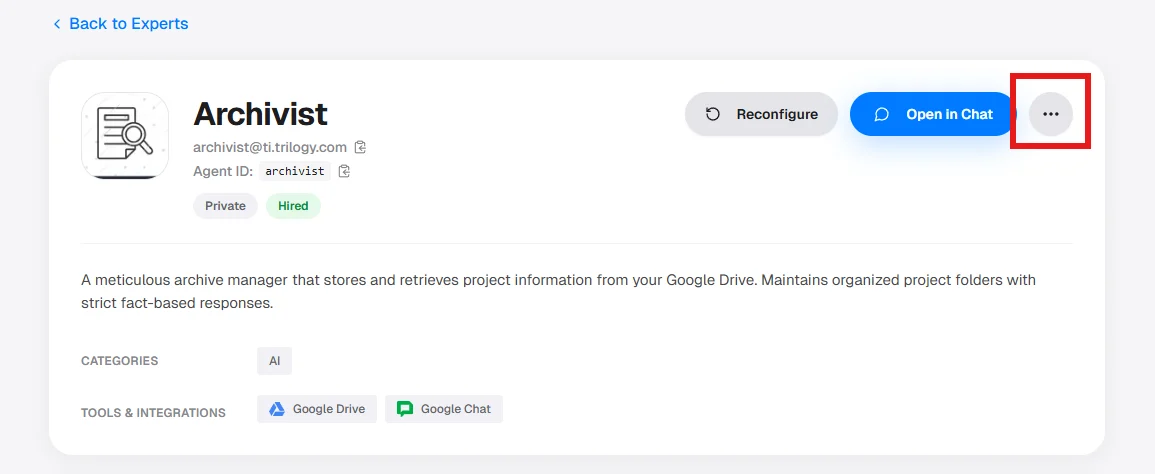
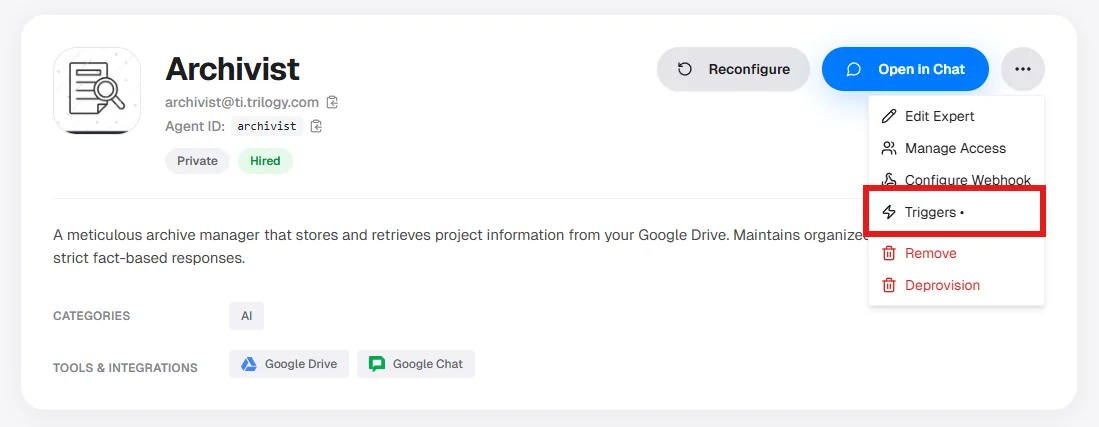
Automate your experts with Standard, Custom, and Calendar triggers — no manual prompts required.
Triggers let an expert run automatically — on a schedule, on a repeating basis, or in response to calendar events — without you sending a message each time.
Expert owner/editor (built into the expert blueprint)
You
Quantity
One per template
Multiple per expert
Types
Cron (time-based) or Calendar (event-based)
Recurring (cron) or One-time
Editing
Updates overwrite the single template trigger
Each schedule is managed independently
Use Standard Triggers when the expert already ships with the automation you need (a weekly report, a daily digest). Use Custom Triggers when you want to add your own schedule that wasn’t pre-built into the expert.
Standard Triggers
Custom Triggers
Standard Triggers are pre-built automation templates defined by the expert’s creator. Each expert ships with zero or more templates. Your job is to configure and enable them.There are two types of Standard Triggers:
A cron trigger fires on a repeating time-based schedule. Examples:
Every weekday at 9 AM — summarize the email inbox
Every Monday at 8 AM — generate a weekly status report
Every hour — check for new support tickets
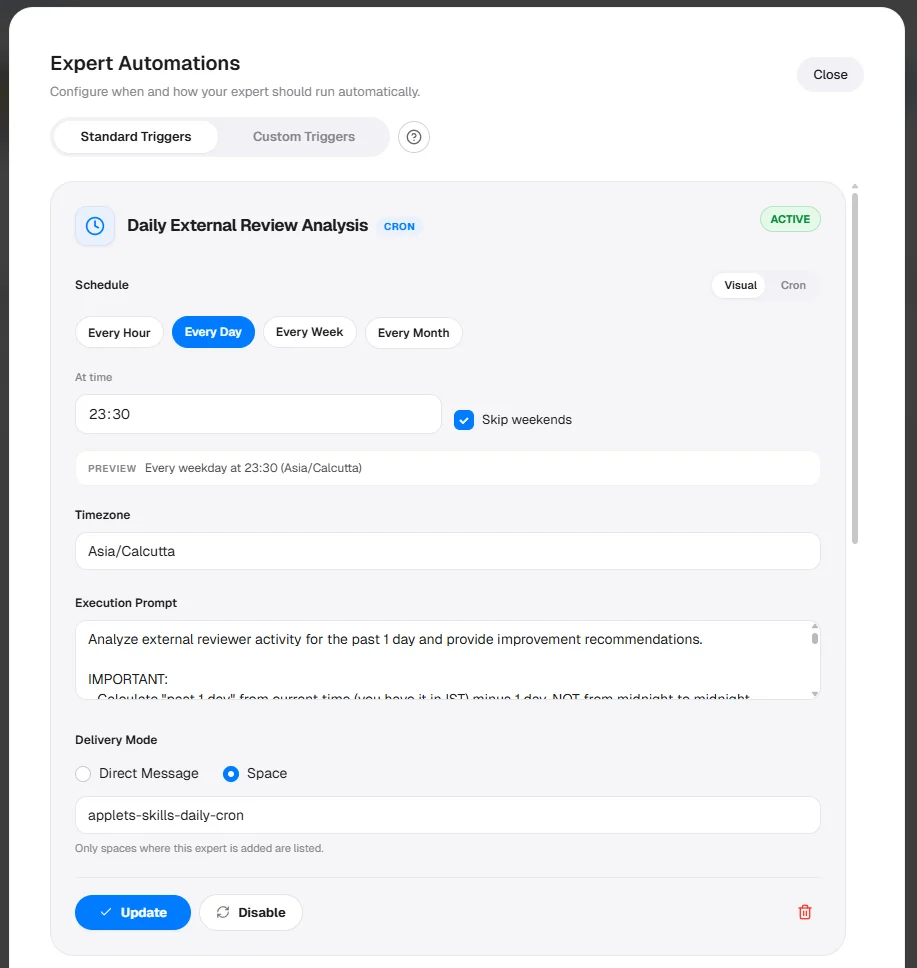
Standard Triggers tab — cron templates with schedule builder
1
Select the Trigger Template
On the Standard Triggers tab, templates appear as cards. Each card shows the template name, type badge (CRON), and current status (NOT CONFIGURED, ENABLED, or DISABLED). Click the one you want to configure.
2
Set the Schedule
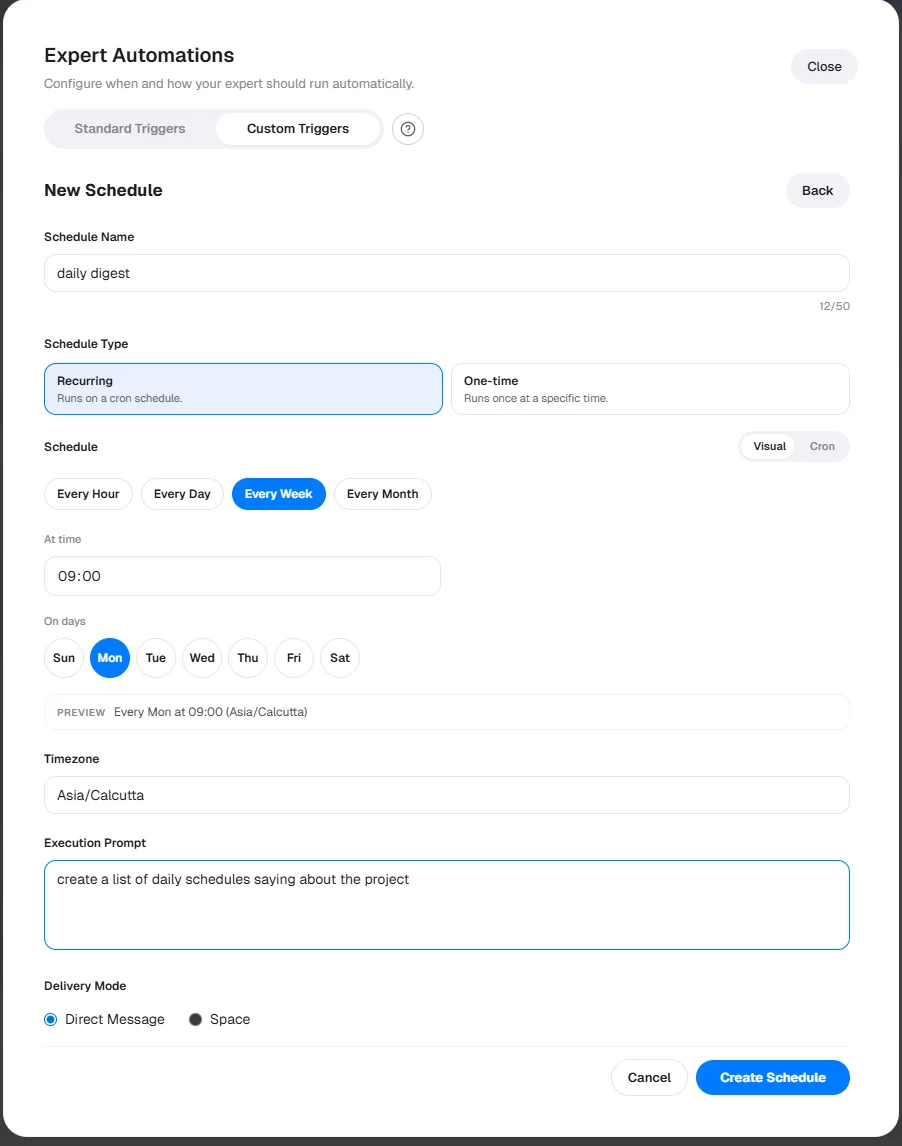
The schedule builder opens in Visual mode by default.Visual mode options:
Frequency: Every Hour, Every Day, Every Week, Every Month
At time: time field in 24-hour format
On days: day-of-week picker (for weekly schedules)
PREVIEW row shows the human-readable result (e.g., Every Mon at 09:00 (America/New_York))
To enter a raw cron expression, click the Cron toggle at the top of the schedule section to switch modes.Common cron expressions:
Expression
Meaning
0 9 * * 1-5
Every weekday at 9:00 AM
0 8 * * 1
Every Monday at 8:00 AM
0 */2 * * *
Every 2 hours
30 17 * * *
Every day at 5:30 PM
0 9 1 * *
First day of every month at 9:00 AM
3
Set the Timezone
Select your timezone from the dropdown. The schedule fires at the specified time in your selected timezone.
If you do not set a timezone, the schedule defaults to UTC. A “9 AM” trigger in UTC may fire at 4 AM or 5 AM in US Eastern time.
4
Write the Execution Prompt
Enter what the expert should do when the trigger fires.Example:
“Check my Gmail inbox for unread emails from the last 24 hours. Summarize the most important ones and list any action items.”
The prompt must be at least 10 characters long.
5
Choose Delivery Mode
Direct Message (DM): The expert sends output to your private DM.
Space: The expert posts to a specific Google Chat Space. Select the Space from the dropdown.
6
Save and Enable
Click Save Automation. The trigger is created in an enabled state and fires at the next scheduled time.
A calendar trigger watches your Google Calendar and activates the expert when events match your criteria — unlike cron triggers which run on a fixed clock, these are event-driven.Examples:
Before any meeting with more than 5 attendees — prepare a briefing document
After any event tagged “Client Call” — draft follow-up notes
When a new event is created — check for scheduling conflicts
1
Select a Calendar Template
On the Standard Triggers tab, select a template with the CALENDAR type badge.
2
Connect Google Calendar
If this is your first calendar trigger, you will need to authorize access:
Click Connect next to the Google Calendar status.
A Google OAuth window opens — sign in and grant access.
Once connected, the status changes to Connected.
The calendar connection must stay active for triggers to work. If you see a “Not connected” status, click Connect to re-authorize.
3
Select a Calendar
Choose which calendar to watch. The default is your Primary Calendar, but you can select any calendar you have access to.
4
Write the Execution Prompt
Enter the instructions the expert should follow when an event triggers it.Example:
“For the upcoming meeting, research the attendees on LinkedIn and prepare a one-page briefing with their roles and recent activity.”
Be specific about which events should trigger action and which should be ignored.
5
Choose Delivery Mode
Select Direct Message or a specific Space.
6
Save and Enable
Click Save Automation. The trigger starts watching your calendar immediately.
The Policy Prompt is set by the expert creator (not the user who hires). It is the system prompt for a lightweight LLM evaluation step that runs before the expert acts.What actually happens: When a new or updated calendar event arrives, the app passes the event details to an LLM using your Policy Prompt as the system prompt. The LLM returns a JSON decision. The app parses that JSON — not the expert, not a tool call — to decide whether and when to fire the expert.This is not an execution prompt. At this step, no tools are available and the expert is not running yet. The only output is a JSON object.Required JSON output structureYour Policy Prompt must instruct the LLM to return valid JSON in this structure. If the LLM returns non-JSON text, parsing fails and that event defaults to ignore (logged server-side).
"ignore" — skip the event. "schedule" — run the expert before the event. "execute_now" — run immediately.
reason
No
Brief explanation, logged for debugging.
leadTimeMinutes
No
Minutes before event start to run the expert. Only applies when action is "schedule". Default: 10.
executeAtIso
No
ISO 8601 timestamp for an explicit run time. Only applies when action is "schedule". Overrides leadTimeMinutes.
The event details passed to the LLM include: event title, start time, description, attendees, organizer, location, and meeting link.If no Policy Prompt is set, a built-in default prompt is used. It decides based on the agent’s name and description and is conservative — it will ignore events when uncertain.Writing a Policy PromptYour prompt replaces the entire default system prompt. You must include the JSON output requirement yourself, otherwise the LLM may return prose and that event will default to ignore.
You are evaluating calendar events for a meeting prep expert.Act on events that are:- External client calls- Meetings with more than 2 attendeesIgnore: internal standups, 1-on-1s, lunch blocks, all-day events.For matching events use "schedule" with 15 minutes lead time.Return ONLY valid JSON — no markdown, no explanation outside the JSON:{ "action": "ignore" | "schedule" | "execute_now", "reason": "brief explanation", "leadTimeMinutes": 15}
If your Policy Prompt does not instruct the LLM to return JSON, the response cannot be parsed and the event defaults to ignore — no user-facing error is shown.
Google Calendar subscriptions expire after 7 days. Braintrust automatically renews them before expiry via a daily background job.If automatic renewal fails, go to the Triggers panel, click Connect to re-authorize, then save the trigger again.Use the Cleanup Calendar button if you have stale subscriptions — this removes all existing Google Calendar subscriptions so you can start fresh.
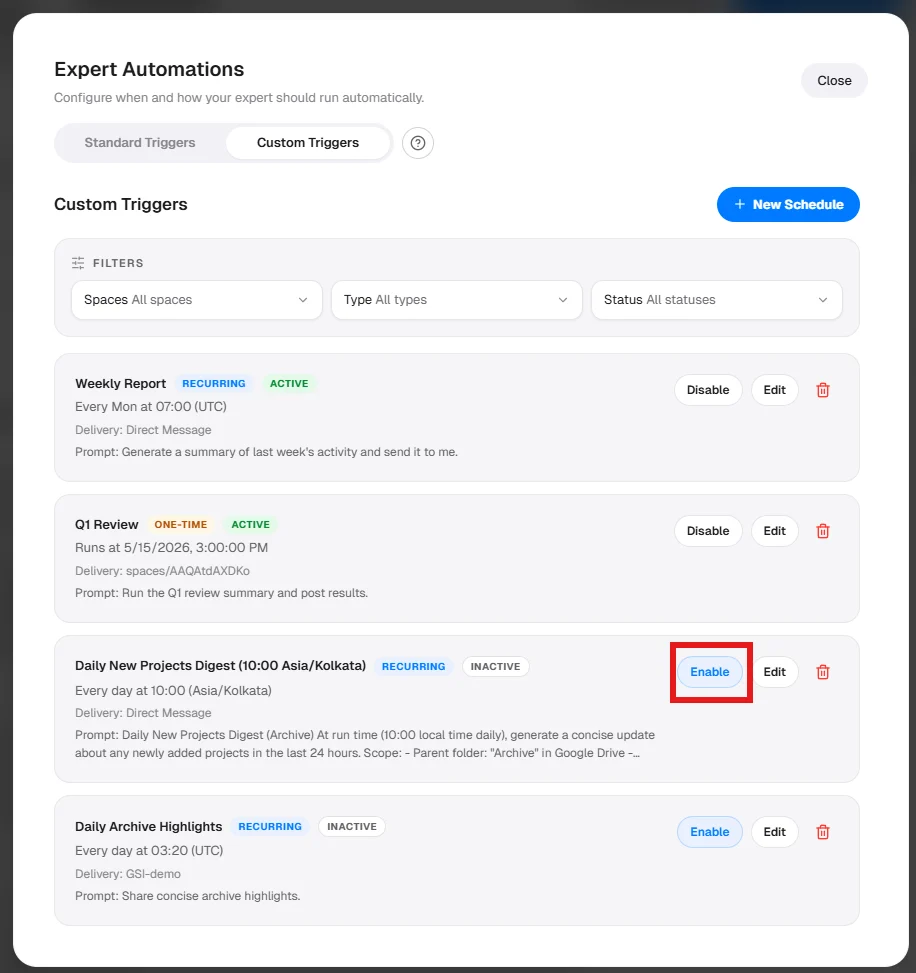
Enable / Disable — Use the toggle next to the trigger.Edit — Click the trigger to update its schedule, prompt, timezone, or delivery mode. Click Update to save.Delete — Click the Delete button on the trigger card to remove it permanently.
Deleting a standard trigger is permanent. Use the enable/disable toggle if you only want to pause it.
Custom Triggers are schedules you create yourself for any hired expert. You name them, choose the timing, write the prompt, and manage them independently.
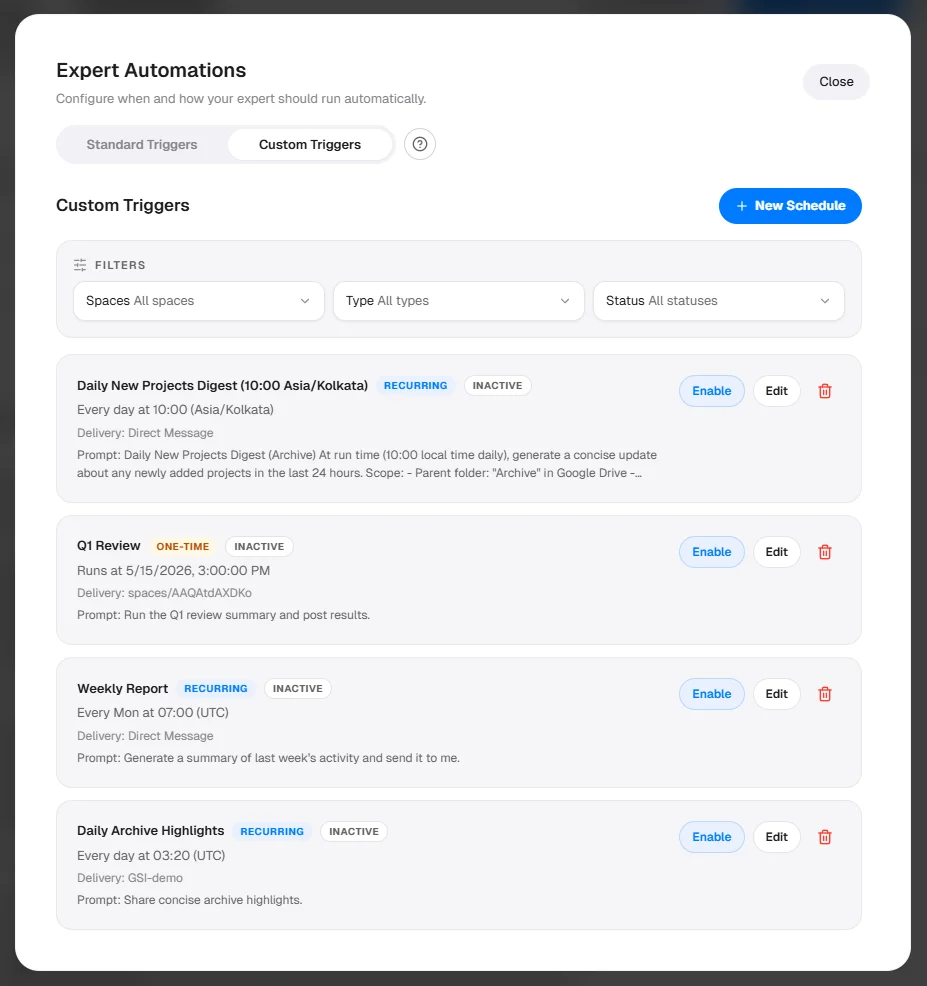
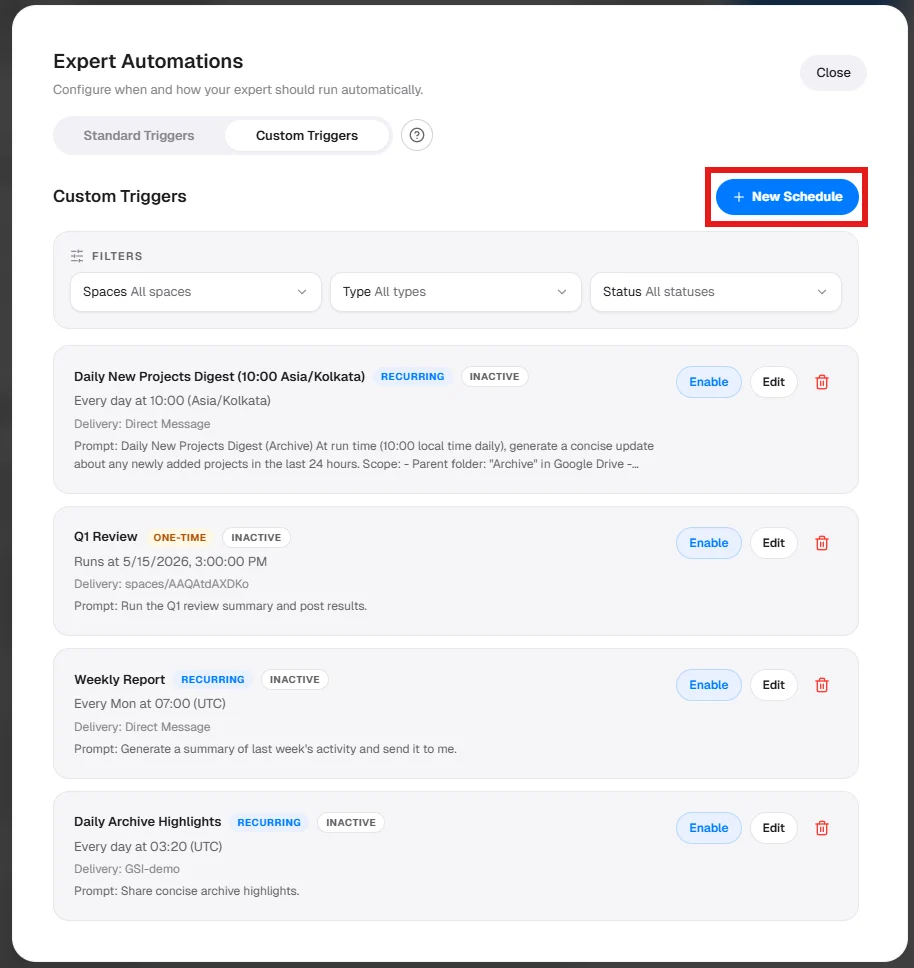
Custom Triggers tab — all your schedules for this expert
Each schedule card shows: name, type badge (RECURRING or ONE-TIME), status (ACTIVE or INACTIVE), human-readable schedule, delivery destination, and prompt preview.
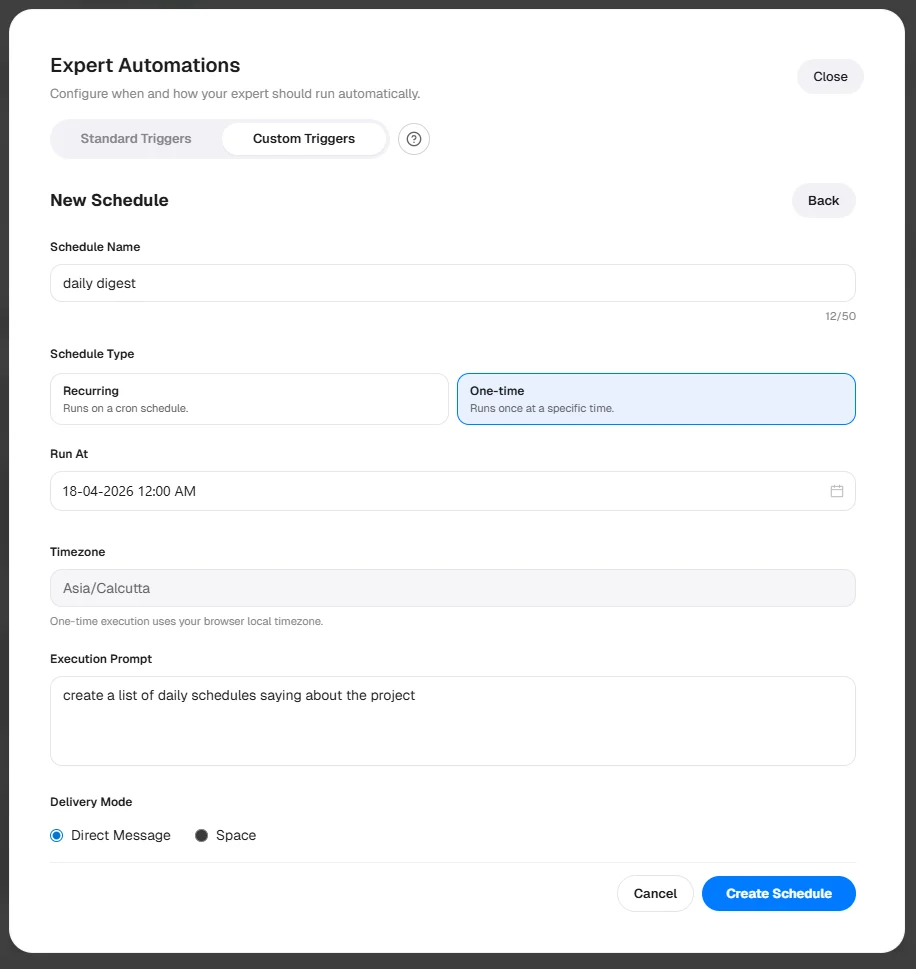
There are two ways — via chat (fastest) or via the UI form (most control). Both methods produce the same result, and triggers created via chat appear in the Custom Triggers tab immediately.
Min interval between recurring schedules in same scope
15 minutes
One-time schedule must be at least
5 minutes in the future
Schedule name length
5–50 characters
Execution prompt minimum length
10 characters
If you exceed 5 active schedules for a given delivery destination, the form will block saving until you disable or delete an existing schedule for that scope.