Before You Start
- Decide the expert’s job in one sentence.
- Pick the minimum tools it needs.
- Prepare one realistic test prompt you will run after creation.
Step 1: Open Create Expert
From the marketplace, click Create Expert.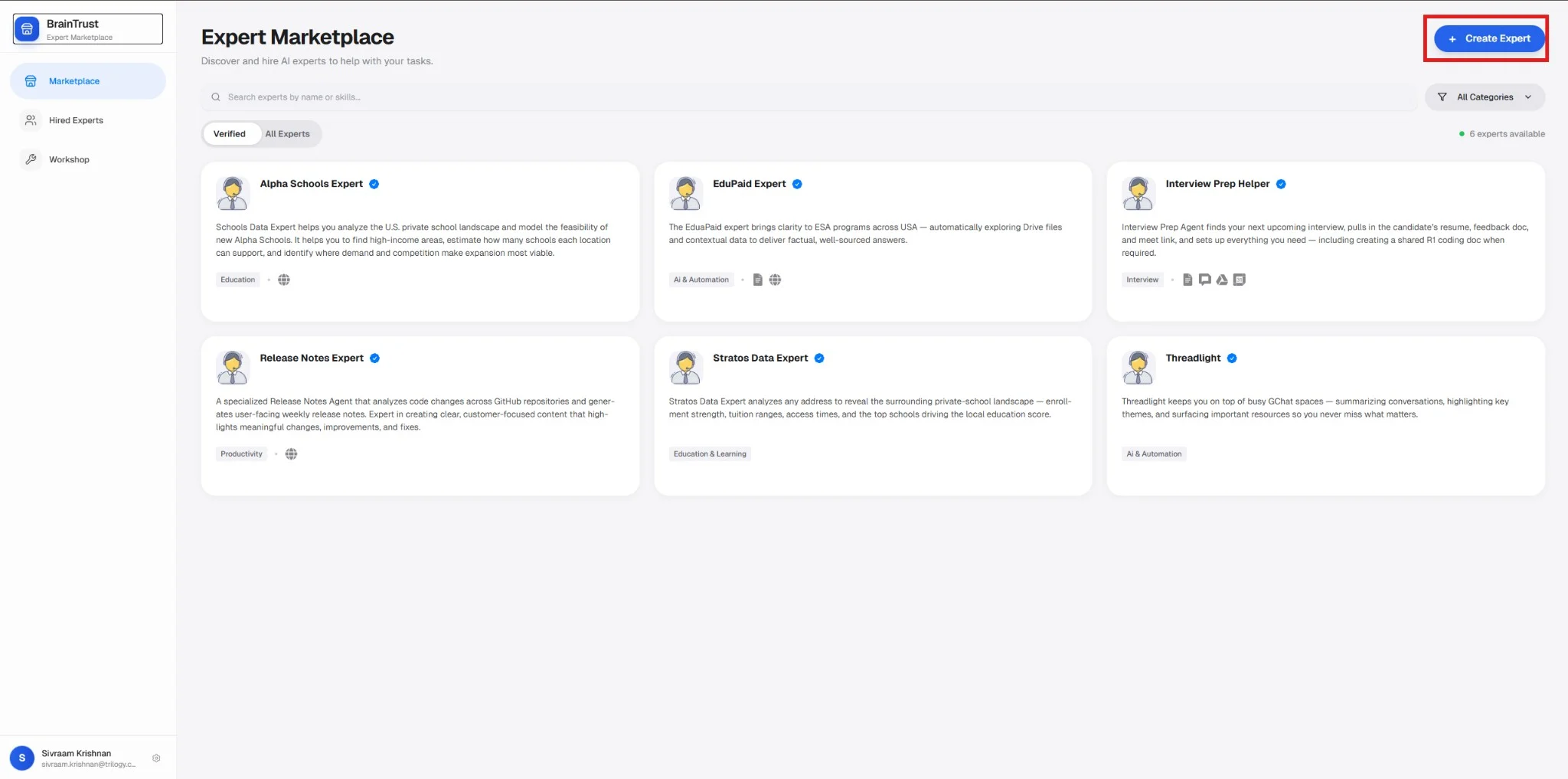
The Expert Marketplace with the Create Expert button highlighted.
Step 2: Fill Basics
In the Basics step, set the expert’s identity:Step 3: Set Behavior
Define how the expert thinks and responds:Intelligence — Model Selection
In the Intelligence section of the Basics step, you can choose the AI model that powers this expert. If you leave it unset, the expert uses the platform default (Claude Sonnet 4.6). Reasoning-capable models also expose a Reasoning effort control — see Reasoning effort below. Available models are grouped by provider. You can filter by Anthropic, OpenAI, or Google:Premium models (Claude Opus 4.8, Claude Opus 4.7, Claude Opus 4.6, Claude Fable 5, and GPT-5.5) are only visible and selectable by admins. Standard editors and owners see standard-tier models only.
Reasoning effort
For reasoning-capable models — currently Claude Sonnet 4.6, the Claude Opus family (4.8 / 4.7 / 4.6), Claude Fable 5, and the OpenAI GPT-5.4 and GPT-5.5 models — the create-expert form exposes a Reasoning effort dropdown adjacent to the model picker. This dropdown controls how many tokens the model may spend on internal chain-of-thought before producing a response. Each model exposes only the effort levels it supports, so the available options vary by model. The dropdown is hidden for models that do not support reasoning effort (Claude Haiku 4.5 and the Gemini models).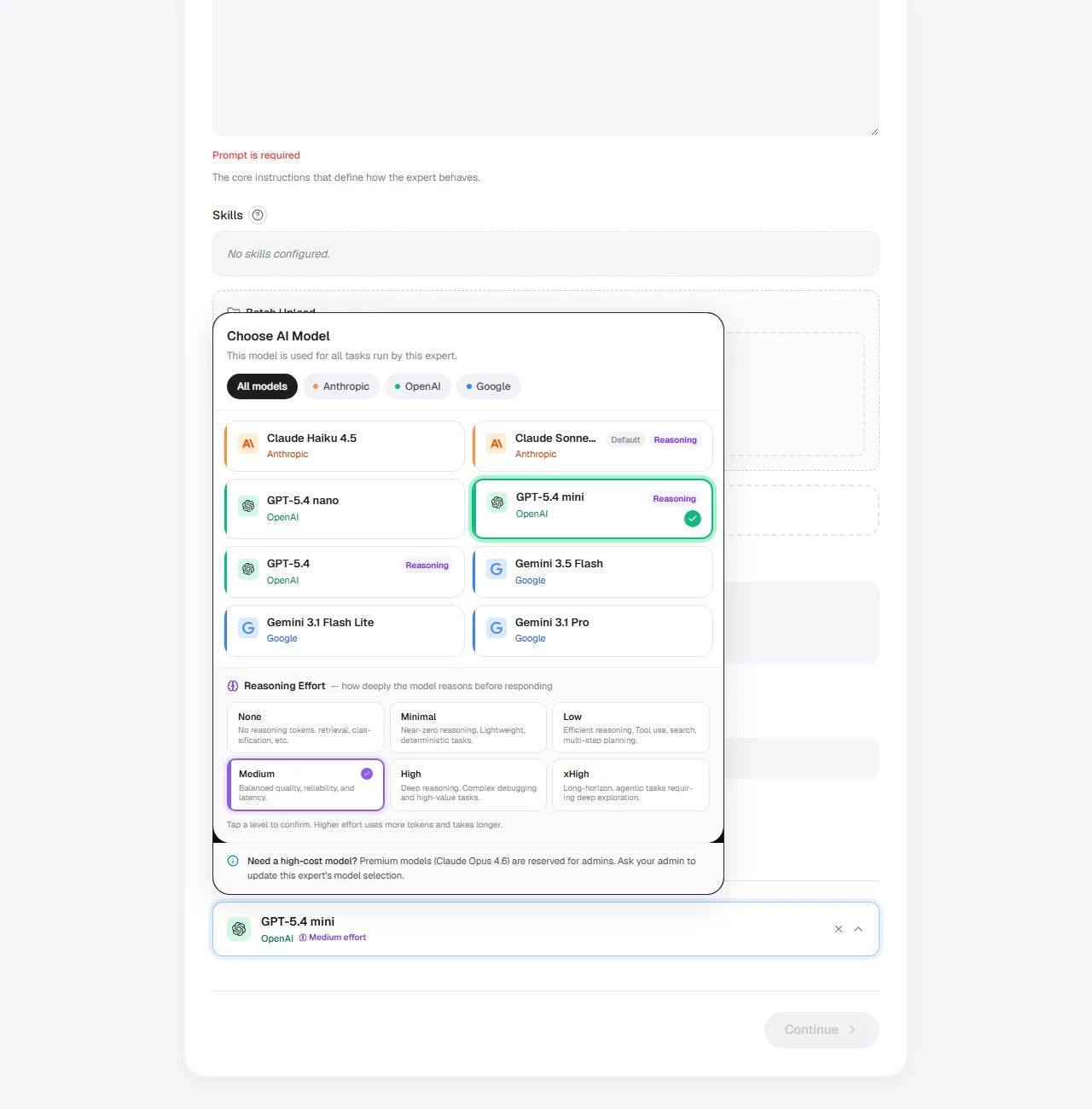
Reasoning effort dropdown on the create-expert form
Step 4: Configure Capabilities
In the Config step, you connect the expert to external tools and optionally define automation templates.Hives vs MCP Servers
Hives are Braintrust’s pre-built tool bundles for common integrations — Google Drive, Sheets, Gmail, Notion, Jira, Supabase, and more. Each user who hires the expert configures their own credentials independently (OAuth or API key), so data is always private and isolated per user. MCP Servers are custom endpoints you bring yourself. Use them only when a hive does not exist for the service you need. Always prefer Hives when available. They are tested, maintained by Braintrust, and handle credential management automatically. Custom MCP servers require you to maintain the endpoint and debug connection issues yourself.See the Hives Reference for further info about the hives.
1
Add Hives
Click Add Hive and select every service the expert needs to do its job. Start minimal — you can add more after testing.
2
Add MCP Servers (if needed)
If a required service has no built-in hive, add a custom MCP server with its Name, URL, and Transport (
sse or streamable_http). Click Verify for each server before continuing — an unverified server will fail silently at runtime.3
Set Hive Env Overrides (optional)
Hive Env Overrides let you set shared default values for a hive that apply to all users of this expert — for example, a default Jira project key or a default database name.Use overrides for safe, non-sensitive shared defaults only. Never put API keys, secrets, or credentials here — those belong in each user’s per-user credential flow and are visible to anyone who can edit the expert.
4
Add Automation Templates (optional)
Automation Templates are cron or calendar trigger blueprints baked into the expert’s blueprint. When a user hires the expert, these templates appear as Standard Triggers they can enable and configure.Use these when you want to ship a pre-built automation with the expert — for example, a weekly report template or a pre-meeting briefing trigger. Leave empty if the expert is purely interactive.
Step 5: Set Access
In the Access step:- Choose a unique
Expert Emaillocal part. - Set visibility to
PrivateorPublic(default is Private).
Step 6: Review and Submit
In Review:- Confirm prompt, tools, automations, and visibility.
- Submit to create the expert.
- Open the expert page and hire it yourself for validation.
Post-Create Validation Checklist
- Hire the expert and confirm DM opens successfully.
- Run a simple prompt and one realistic task prompt.
- Confirm required tools can actually access data.
- If automations were added, run a quick trigger test.
- Verify output quality and update prompt before broad rollout.
Field Notes That Match Current UI
Logouses a Logo URL field (no file upload in create form).MCPsupportsName,URL, andTransport(sseorstreamable_http).Automation keyis generated from display name and should stay unique.Access listis managed after creation in Manage Access.
Common Mistakes to Avoid
- Prompt is too vague.
- Too many hives/tools on first version.
- Publishing public before real task validation.
- Adding automations before core chat behavior is stable.
Connect a GitHub repo (optional)
The Source Repo field on the Create Expert form records a GitHub repository URL on the expert. It is a metadata-only field — entering a URL stores the value assourceRepoUrl on the expert record but does not by itself move any data between Braintrust and GitHub.
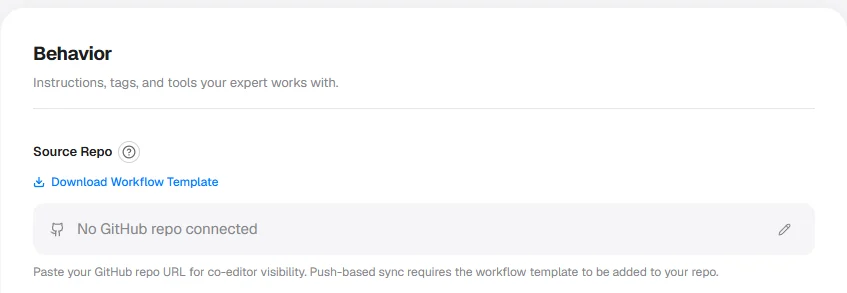
The Source Repo field on the Create Expert form, showing the URL input and workflow-template download affordance.
github → braintrust only. Braintrust never writes back to your repository.
Where it appears: at the bottom of the Create Expert form, below the main configuration sections.
Accepted format: a full GitHub repository URL.
Workflow template download: the Source Repo field also exposes a workflow-template download. Download the template file and commit it to your connected repository to activate the sync workflow. Without the workflow file in the repo, the sync will not run.
This field is optional. Leave it blank if you do not manage expert configuration in GitHub.
Next Steps
Expert Fields Reference
What every field means, and how to choose values.
Connecting Tools and Integrations
Configure OAuth, API keys, and reconfiguration flows.
Editing an Expert
Update behavior, tools, access, and rollout settings.
Manage Access and Permissions
Control who can view, hire, and edit experts.