What hiring does: Creates your private copy of an expert and opens a DM in Google Chat. Your credentials and conversation history are isolated from other users who hire the same expert.
Step 1: Find an Expert
Open the marketplace: braintrust.ti.trilogy.com/experts- Verified view (default): reviewed experts.
- All Experts view: full catalog, including community-created experts.
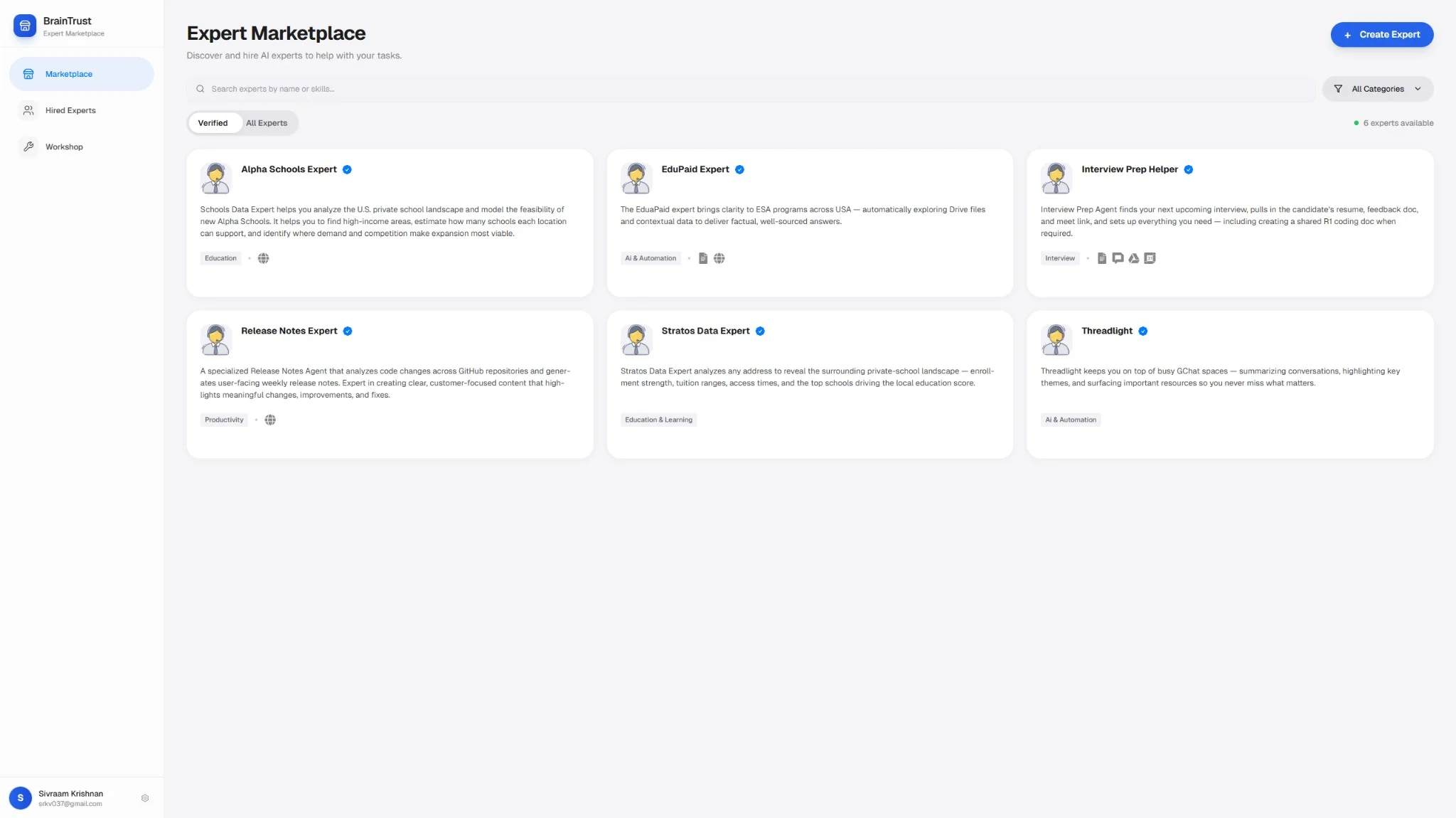
Expert Marketplace
Step 2: Review the Expert Page
Before hiring, check:- What it does (description/about)
- Which tools it uses
- Example outputs/images
Take a Guided Tour
Every expert page — the marketplace listing at braintrust.ti.trilogy.com/experts and each single-expert detail page — has a Need Help? button in the top corner. Click it to open the help menu, which has two entries:1
Open Need Help?
Click the Need Help? button in the top corner of the page.
2
Choose Page tour or Getting Started
- Page tour launches an interactive walkthrough that highlights the key areas of the current page in sequence. On a single-expert page it highlights the expert overview card first, then the actions.
- Getting Started reopens the first-run getting-started guidance.
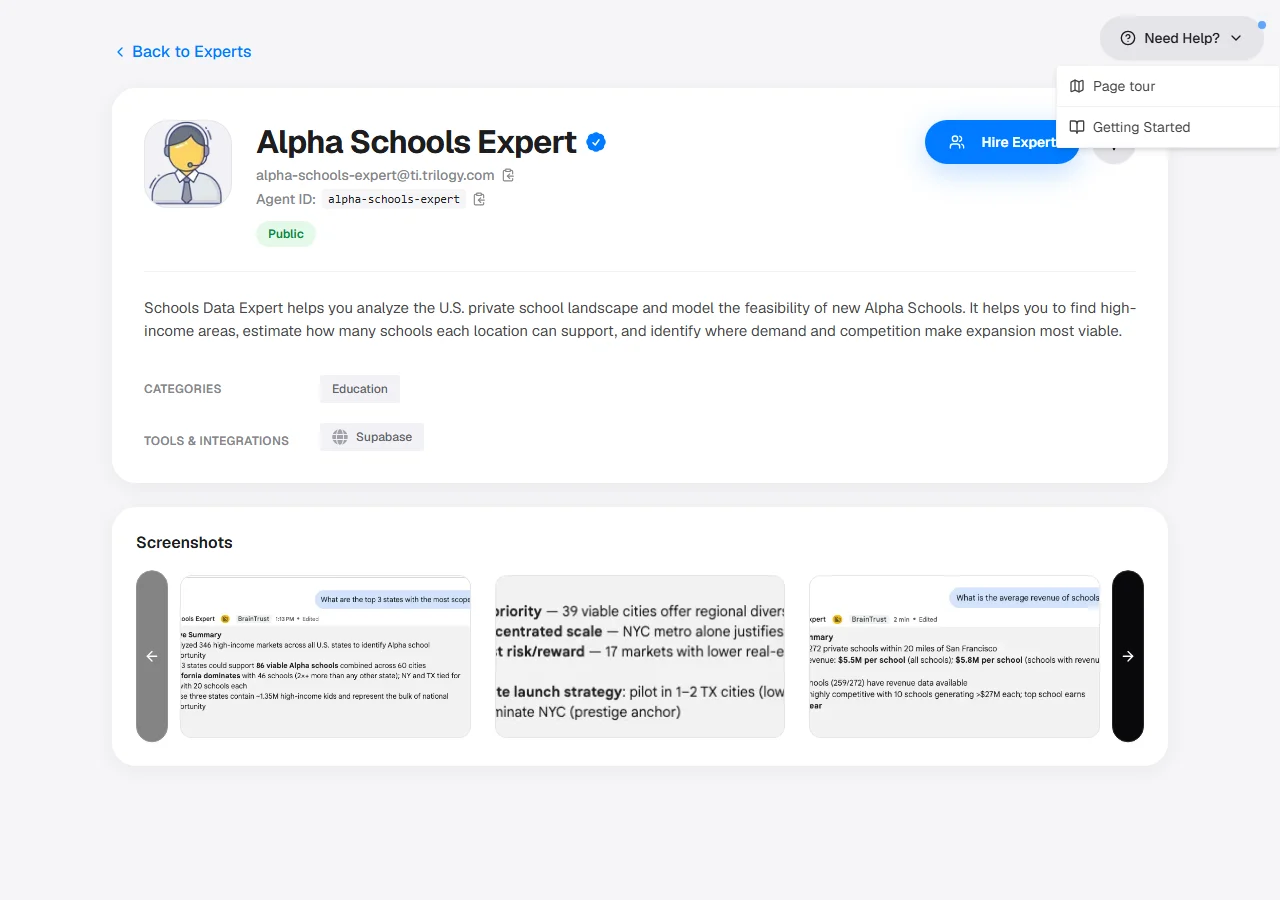
Need Help? menu on an expert detail page
The tour highlights elements in place (such as the expert overview card) and you can dismiss it at any time. It does not change any expert configuration.
Step 3: Click Hire Expert
On the expert page, click Hire Expert.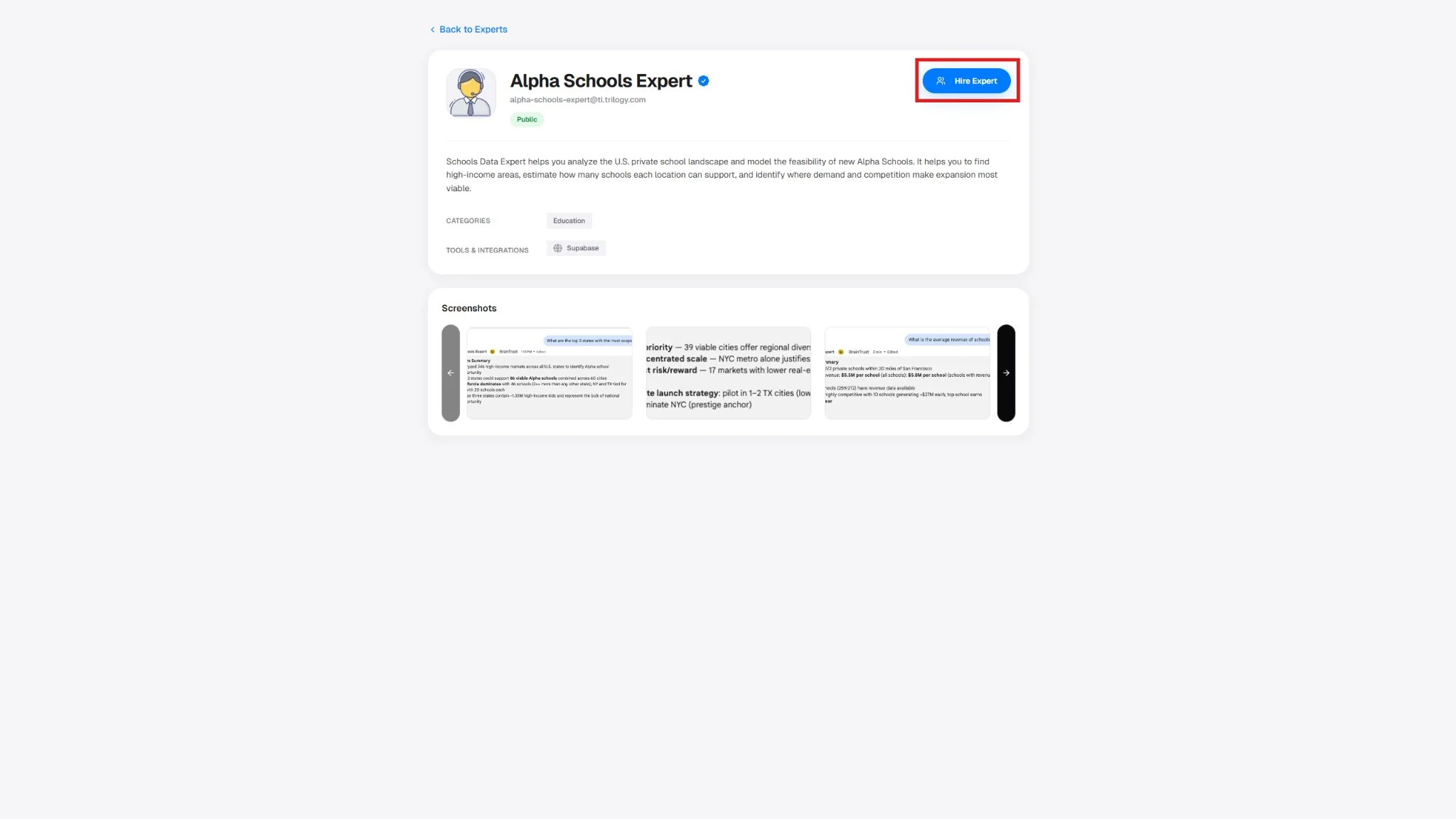
Hire Expert button on the expert page
- Your private expert copy is created.
- A DM opens in Google Chat.
- The button changes to Open in Chat.
Success: The expert now appears in your hired list and has an active DM.
Step 4: Configure (If Prompted)
If you see Configure or Reconfigure:- Click Configure.
- Complete each required service (OAuth/API key/token/etc).
- Continue until all items show checkmarks.
Step 5: Open in Chat
Click Open in Chat and send a first test message. Suggested first prompt:“What can you help me with?”
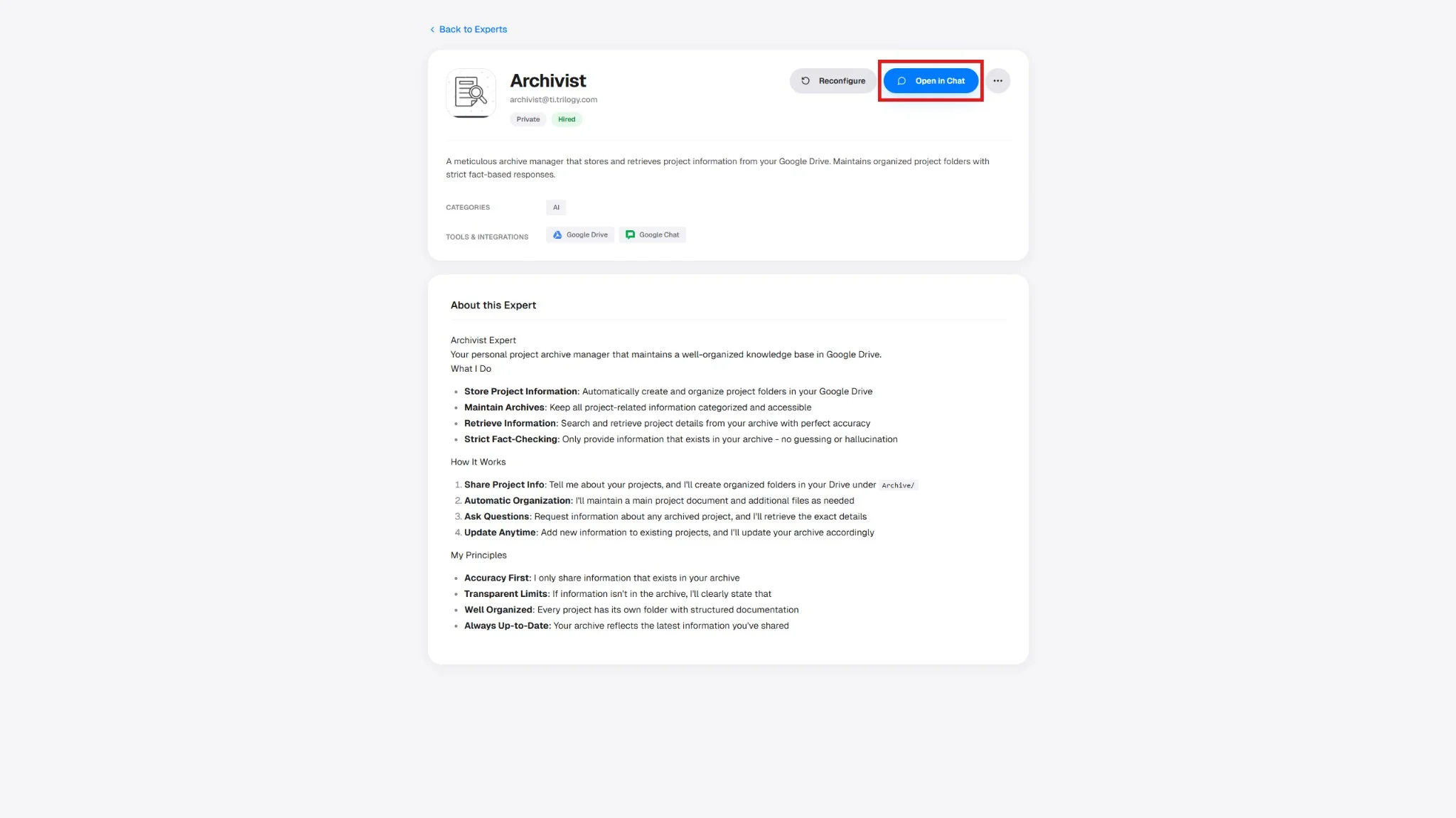
Open in Chat button after hiring
What You Get When You Hire
- A private DM with this expert.
- Your own isolated credentials/configuration for connected tools.
- Independent usage from other users who hire the same expert.
Manage Later
From the expert page you can:- Open in Chat
- Configure/Reconfigure
- Set Triggers
- Remove (permanent for your copy)
Next Steps
Talking to Your Expert
Learn prompt patterns that produce better results.
Add to Group Spaces
Share your expert with your team.
Set Up Automations
Run recurring workflows automatically.
Troubleshooting
Fix common hire/configuration issues.