Use this guide for a safe change process. For exact field definitions, use Expert Fields Reference.
Open the Editor
- Open the expert page.
- Click Edit Expert.
- Update fields and save.
What You Can Change
- Identity: name, description, logo, about, images.
- Behavior: system prompt, hiring message, skills, categories.
- Intelligence: the AI model powering the expert — change it anytime from the Intelligence section in the Basics step. The platform default is Claude Sonnet 4.6. Admins can also select premium models (Claude Opus 4.6). See model options for the full list. For reasoning-capable models, you can also adjust the Reasoning effort setting — see Reasoning effort below.
- Capabilities: hives, MCP servers, env overrides, synced Drive folder.
- Automation: trigger templates (cron/calendar).
- Access: visibility and permissions.
Safe Edit Order (Recommended)
- Update prompt/behavior first.
- Validate in DM.
- Then update tools/integrations if needed.
- Re-test one real workflow end to end.
High-Impact Changes (Use Caution)
Common Mistakes
- Making multiple high-risk changes at once.
- Removing tools before checking who depends on them.
- Updating prompt and access simultaneously without testing.
Reasoning effort
When editing an expert built on a reasoning-capable model (currently the OpenAI GPT-5 nano family), the Reasoning effort dropdown is available in the Intelligence section — the same control as on the create form. For the full list of supported values and their meanings, see Reasoning effort in the create-expert guide. The value table and defaults are the same whether you are creating or editing.Changing reasoning effort on an existing expert applies to future invocations only. In-flight or queued invocations are not affected.
Connect or update the GitHub source repo
The Source Repo field is also available on the Edit Expert form, rendered by the same GitHubSyncField component as the create flow. It remains a metadata-only field — saving a URL here storessourceRepoUrl on the expert record but does not by itself move any data between Braintrust and GitHub.
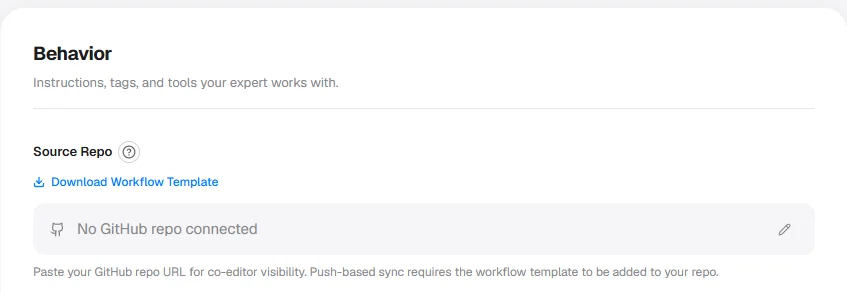
The Source Repo field on the Edit Expert form, showing an example repo URL and the workflow-template download affordance.
- Set a repo: enter the GitHub URL in the Source Repo field and save.
- Change the repo: replace the existing URL with the new one and save.
- Clear the repo: remove the URL and save to disconnect the sync.
Next Steps
Expert Fields Reference
What every editable field does.
Manage Access and Permissions
Control visibility and contributor roles.
Connecting Tools and Integrations
Configure and troubleshoot credentials.
Create an Expert
Build a new expert from scratch.