Prerequisites
- You are an Owner or Editor of the expert.
- You can access the expert’s detail page in the Braintrust Marketplace.
The Three Roles
Every user who interacts with an expert has one of three roles:- Viewer is the default role for anyone who can see the expert.
- Editor can modify the expert’s settings and invite others.
- Owner has full control, including the ability to delete and deprovision the expert.
Public vs Private Experts
Experts have two visibility modes:Public Experts
- Visible to everyone in the marketplace.
- Anyone can hire them.
- Default for newly created experts.
Private Experts
- Only visible to users on the access list.
- If you are not on the access list, the expert does not appear in your marketplace — it returns a “Not found” error if you try to access it directly.
Managing the Access List
Open the access management panel:- Go to the expert’s detail page.
- Click Manage Access in the More menu.
- The access modal opens.
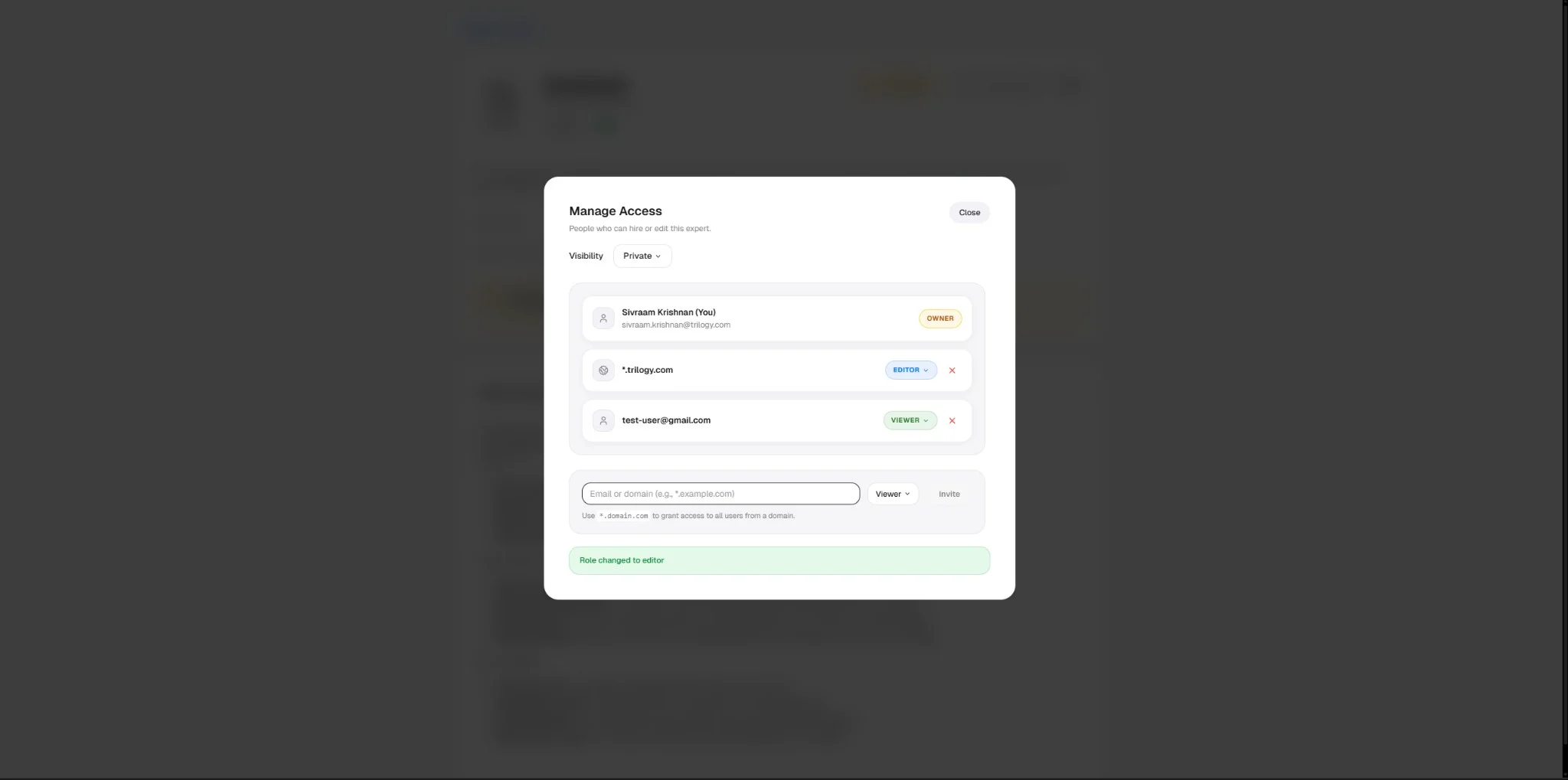
The Manage Access modal showing an Owner, a domain-level Editor (*.trilogy.com), and an individual Viewer, with the invite form at the bottom.
Viewing Current Access
The modal shows a list of all users and domains with access:- Owner — Shown with an amber badge. Cannot be removed or changed.
- Editor — Shown with a blue badge. Can be changed to Viewer or removed.
- Viewer — Shown with a green badge. Can be changed to Editor or removed.
Inviting Users
- In the invite form at the bottom of the modal, enter an email address or a domain pattern.
- Select a role: Viewer or Editor.
- Click Invite.
Domain patterns use the format
*.domain.com. This gives access to every user with an email ending in @domain.com (e.g., alice@domain.com, bob@domain.com).Changing Roles
- Find the user in the access list.
- Click the role dropdown next to their name.
- Select the new role (Viewer or Editor).
Removing Access
- Find the user or domain in the access list.
- Click the X button next to their entry.
How Access Affects Behavior
Common Scenarios
Make an expert available to everyone
Make an expert available to everyone
Set the expert to Public. Everyone in the marketplace will be able to see and hire it.
Restrict an expert to my domain users only
Restrict an expert to my domain users only
- Set the expert to Private.
- Add your team’s domain pattern:
*.yourteam.com(or add each team member individually). - Set the role to Viewer for most people.
Let a colleague help manage the expert
Let a colleague help manage the expert
Add their email to the access list with the Editor role. They will be able to edit settings and manage access.
Transfer ownership
Transfer ownership
Ownership transfer is not available through the UI. Contact your Braintrust administrator to change an expert’s Owner.
Troubleshooting
Next Steps
Edit Expert Settings
Modify the expert’s behavior, tools, and identity.
Create a New Expert
Build your own expert from scratch.